How to use ONN
A quick tour of everything you can do on Olympus News Network as a member, from setting up your profile to raids, chat, voice and the desktop app.
1Getting started
Anyone can read the news, the Army page and the addon list. Everything for members (chat, raids, guild spaces, supply requests, Find Players) needs you to sign in.
- Click Sign in at the top right of any page. Sign-in uses Archway ID; if you don't have one, you can create it on the sign-in page with your email.
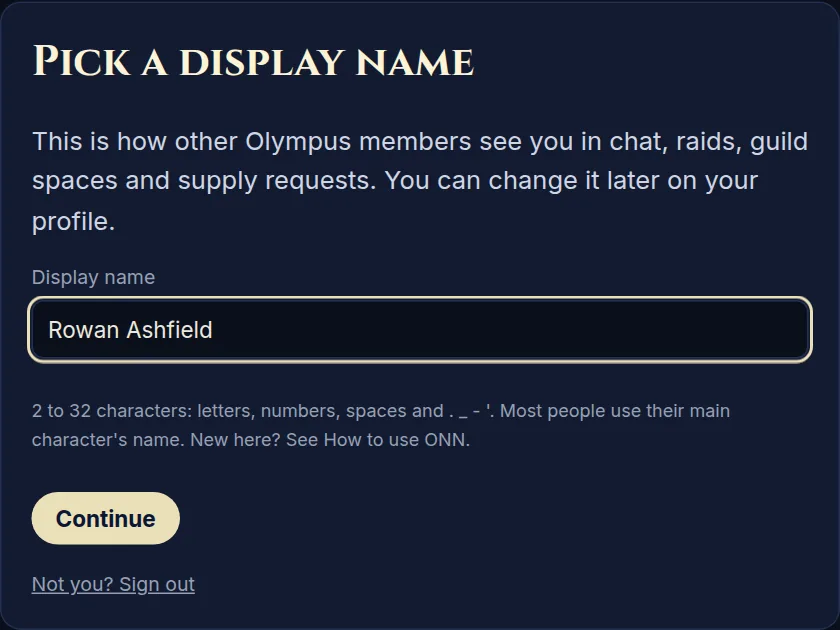
- The first time you sign in, ONN asks you to pick a display name. This is how other members see you in chat, raids and guild spaces. Most people use their main character's name. Names are unique, and you can change yours later.
- That's it, you're in. Next, set up your profile and add your characters (below) so guildmates can find you.
2Your profile
Click your name at the top right (or Your profile) to edit it. Press Save at the bottom when you're done.
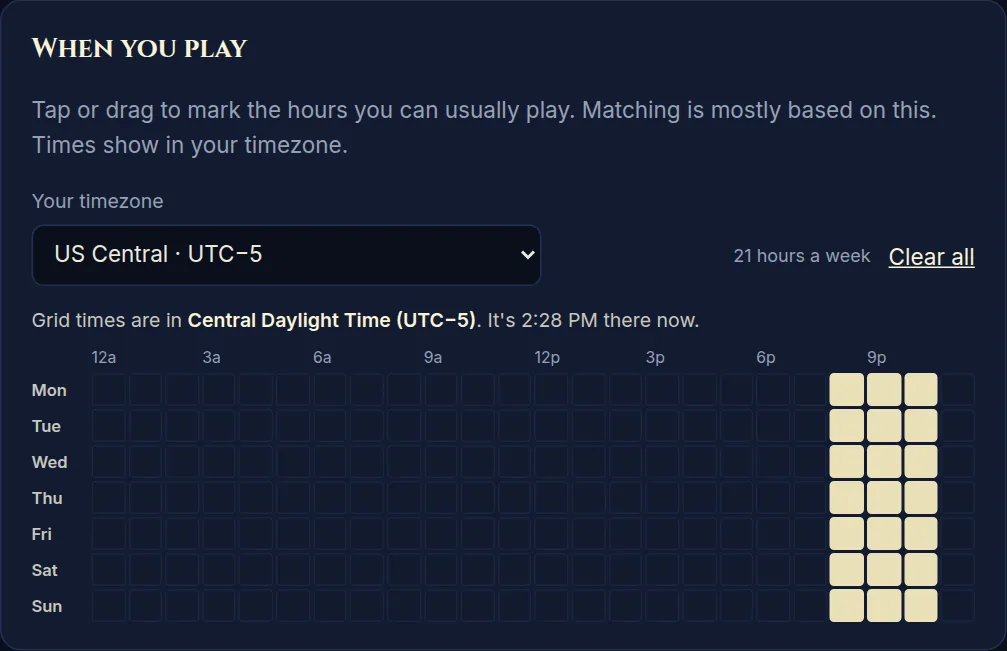
- When you play: tap or drag across the grid to mark the hours you usually play, and pick your timezone. This is what Find Players uses to match you with people who are online when you are. Everyone sees times in their own timezone.
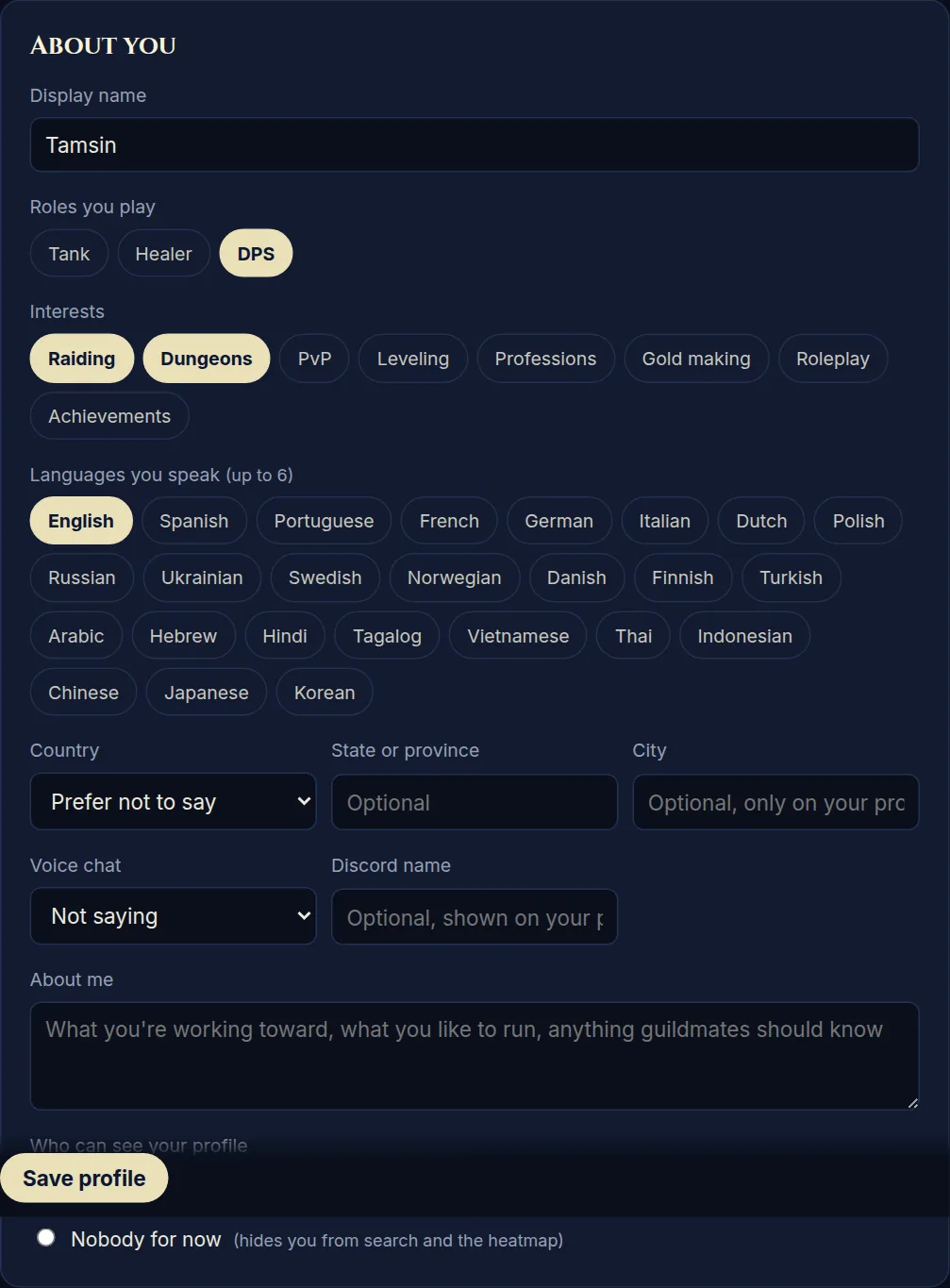
- About you: display name, the roles you play (tank, healer, DPS), interests (raiding, dungeons, PvP, leveling, professions...), languages, region, whether you use voice chat, your Discord name and a short "about me". All optional except the display name.
- Who can see your profile: "Signed-in guild members" (the default) or "Nobody for now", which hides you from Find Players and profile pages. Your email is never shown to anyone.
- Battle.net: optionally link your Battle.net account. ONN only gets your account number and BattleTag, never your password.
- Account: sign out, or delete your account and everything in it.
3Adding your characters
- On your profile, find Characters.
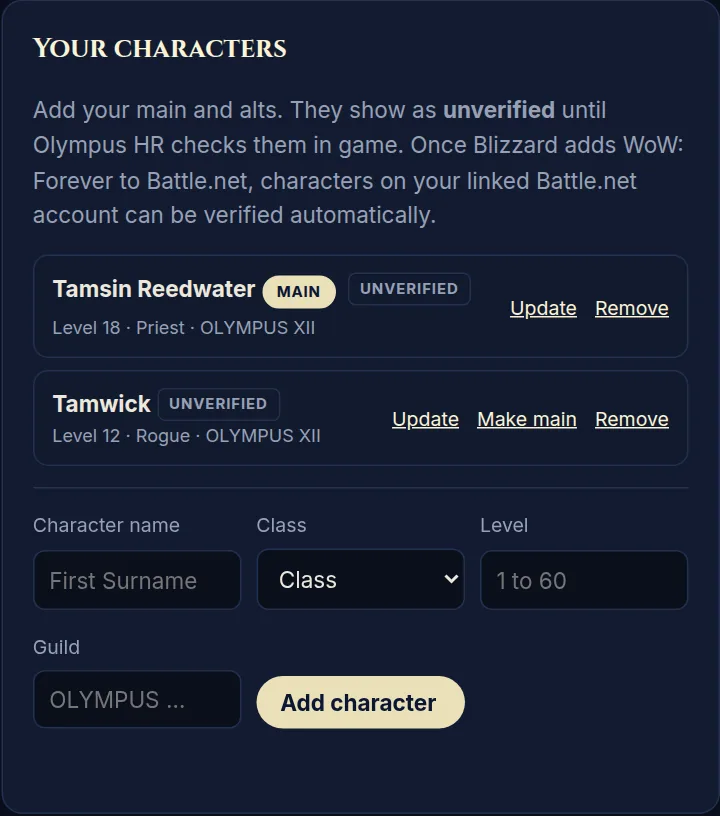
- Enter the character's name, class, level and guild (start typing "OLYMPUS" and pick yours from the list), then press Add character.
- Add your alts the same way. Press Make main next to the one you play most. Your main's name and guild show next to your name in chat.
- Press Update on a character to change its level (the − / + buttons), class or guild as you go.
New characters show as Unverified until Olympus HR checks them in game; then they get a Verified badge.
4Joining your guild
Each Olympus guild has a private Guild Space that only its approved members can see: a message board, events, the member list and the guild's census stats.
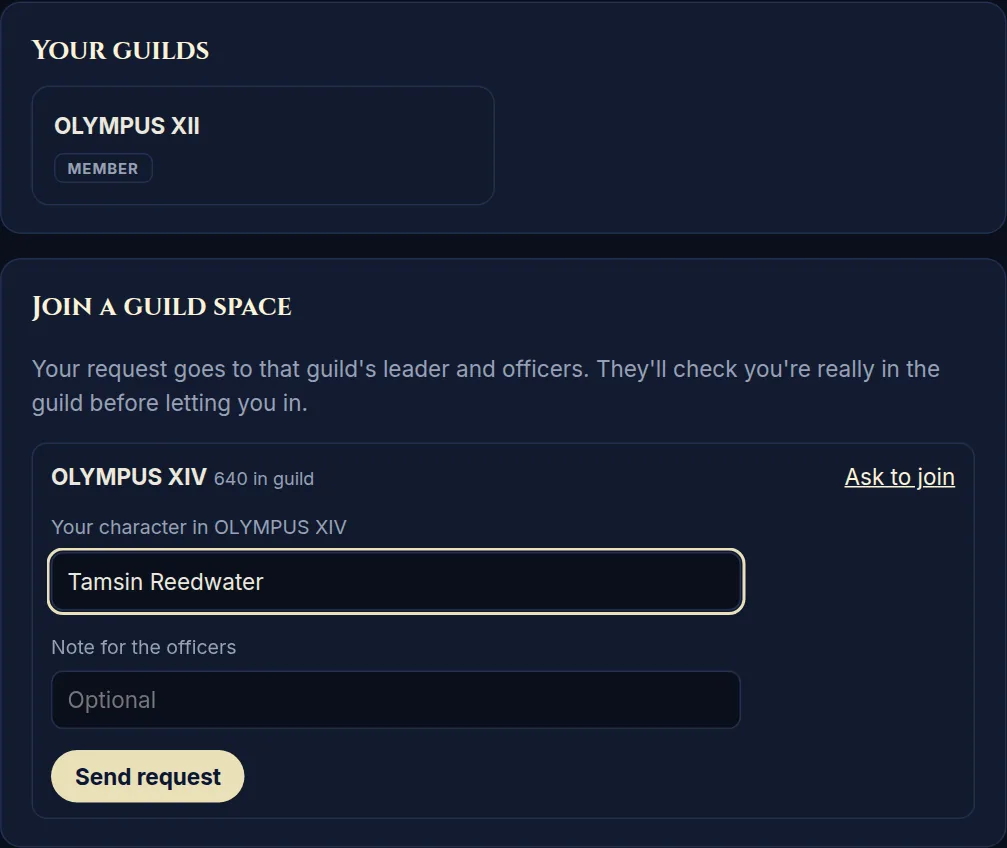
- Go to Guild Spaces and find your guild in the list.
- Click Ask to join, type the character you have in that guild, add a note for the officers if you like, and press Send request.
- The guild master or an officer approves you, usually after checking you in game. Until then it shows as "Waiting for approval" (you can cancel it).
- Once you're in, the guild shows under Your guild spaces, and you also get your guild's chat room.
Inside a guild space:
- Board: read and reply to posts, or start one with New post. Whoever posts chooses who can see it (just the guild, officers only, other guilds you pick, or leaders of every guild).
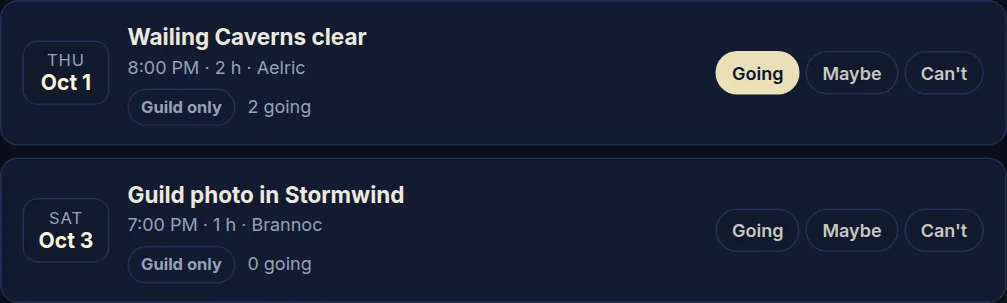
- Events: see what's coming up and answer Going, Maybe or Can't. Any member can plan an event.
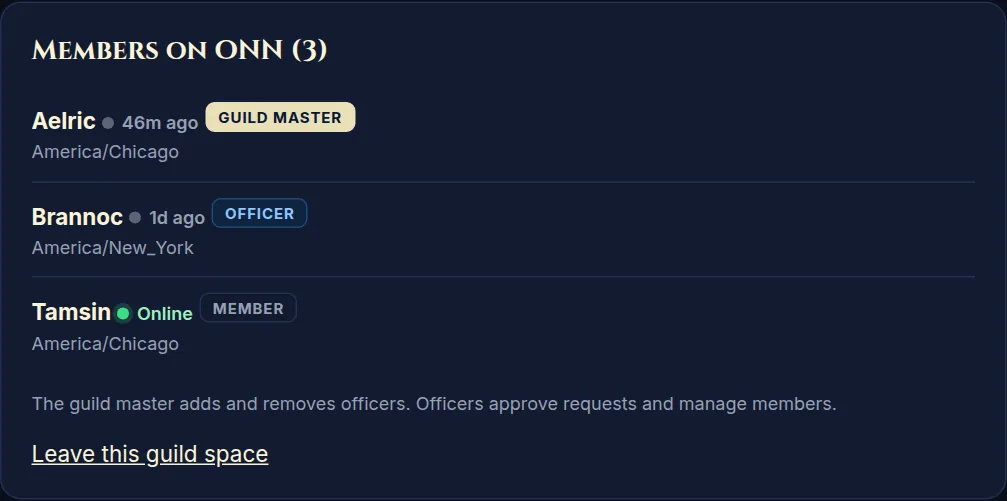
- Members: everyone in the space, with a green dot when they're online. Click a name to open their profile.
If your guild says "no ONN leader yet", nobody can approve requests yet. Ask your guild master to contact an ONN admin.
5Chat and direct messages
Open Chat from the menu. On a phone, use the drop-down at the top to switch rooms.
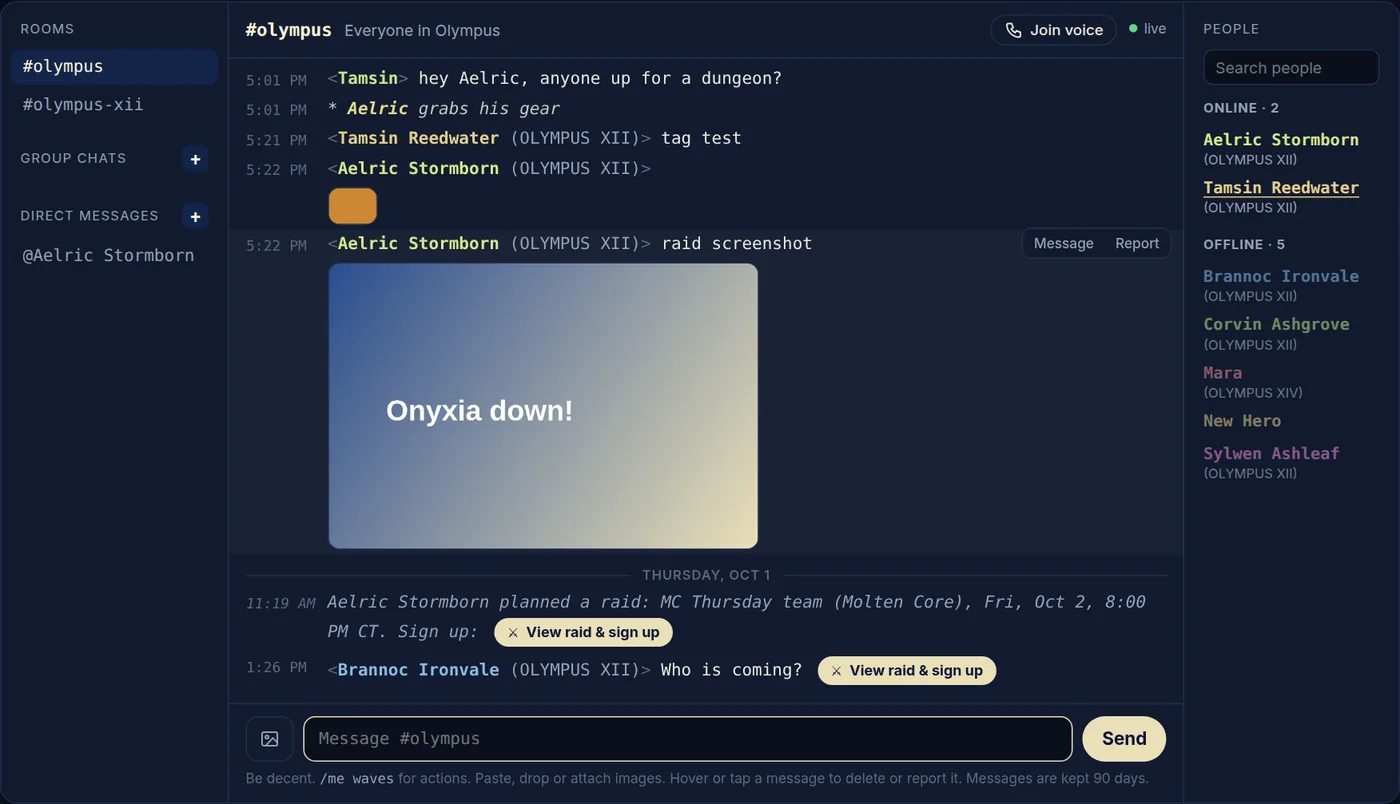
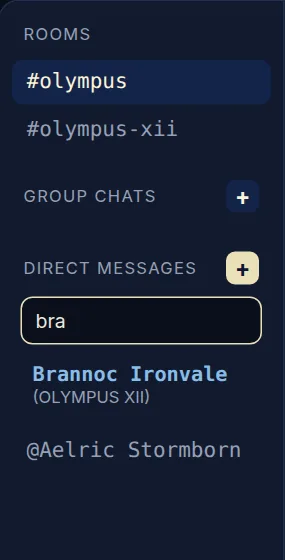
- Rooms: #olympus is for everyone; your guild has its own room once you're in its guild space; guild masters and officers also get #leaders.
- Sending: type and press Enter. Paste, drag in or attach (the picture button) an image.
/me wavesposts an action. - Direct messages: press + next to "Direct messages" and search a name or character, click a name in the People list or on a message, or press Message on someone's profile. Only the two of you can see a DM.
- Group chats: press + next to "Group chats", name it and pick people. Anyone in the group can add more people; the person who started it can rename it or remove people. Use People in the room header to manage it.
- People list: on the right (the "Online" button on a phone). It shows who's online now, then everyone else in the room, with a search box.
- Raid links posted in chat become a View raid & sign up button.
- Problems: hover or tap a message to Report it to Olympus HR. Moderators can delete messages and mute people. You can block someone from their profile.
Messages are kept for 90 days.
6Voice calls
- In any room, DM or group chat, press Join voice (or Call in a DM) at the top. Allow microphone access when your browser asks.
- Calling in a DM or group chat rings the other people; they get a Join / Decline box. In rooms, anyone can just join.
- The voice bar has Mute, Deafen (stop hearing the call, which also mutes you), Mic % (turn your microphone up or down; 100% is normal) and Leave.
- A call stays open when people leave, like Discord. If you see Call in progress, press Join call to get back in.

7Raid planner
- Open Raids from the menu to see upcoming raids. My raids shows the ones you lead or signed up for.
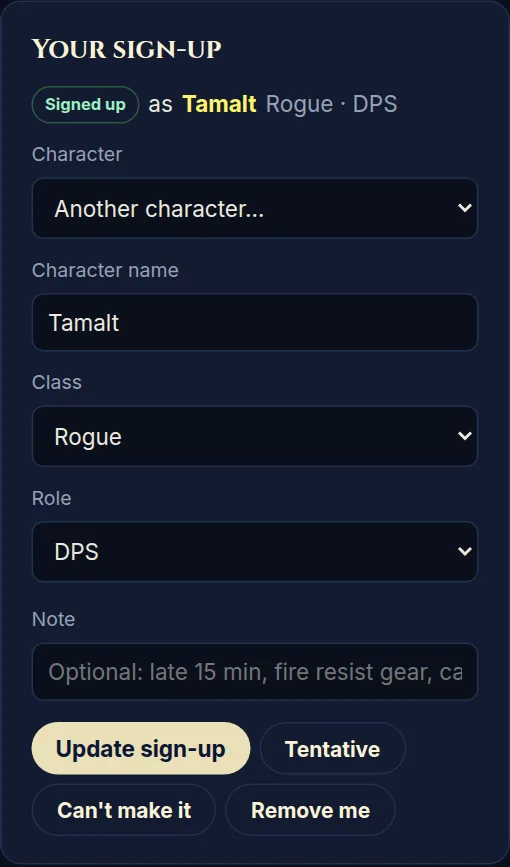
- Open a raid and use Sign up on the right: pick one of your characters (or type another), its class and role, add a note if you like, and press I'm in. You can also mark Tentative or Can't make it, and change or remove your sign-up any time before the raid.
- The raid leader confirms the roster. You'll see Confirmed or Bench next to your name.
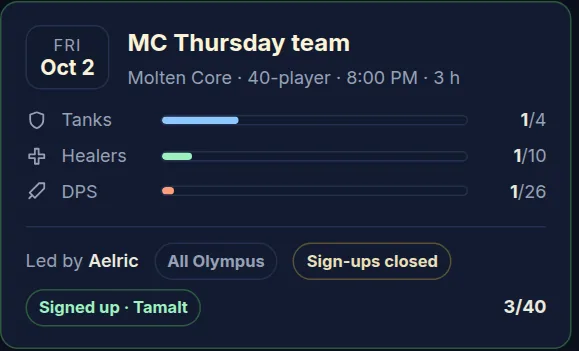
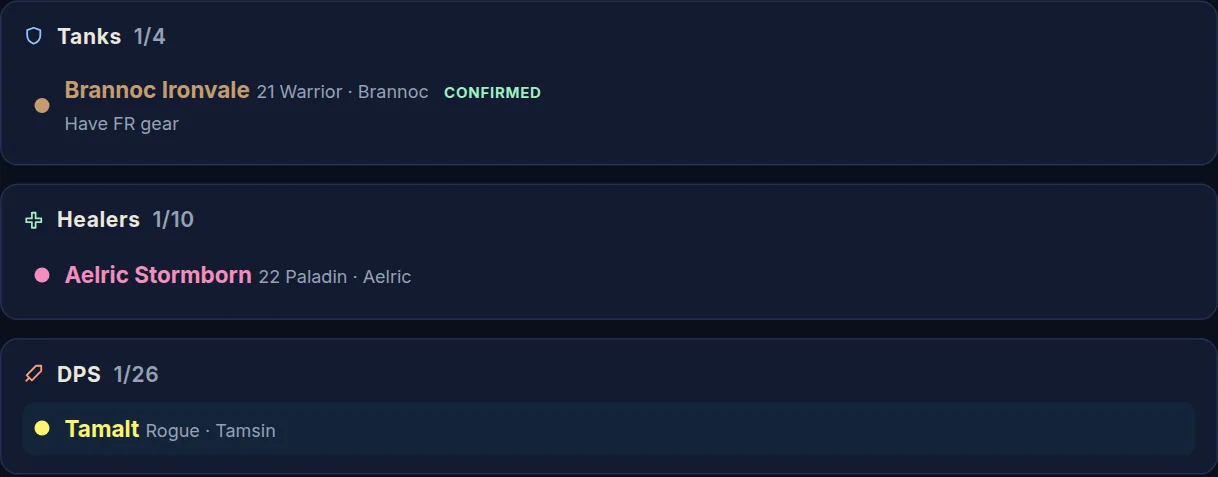
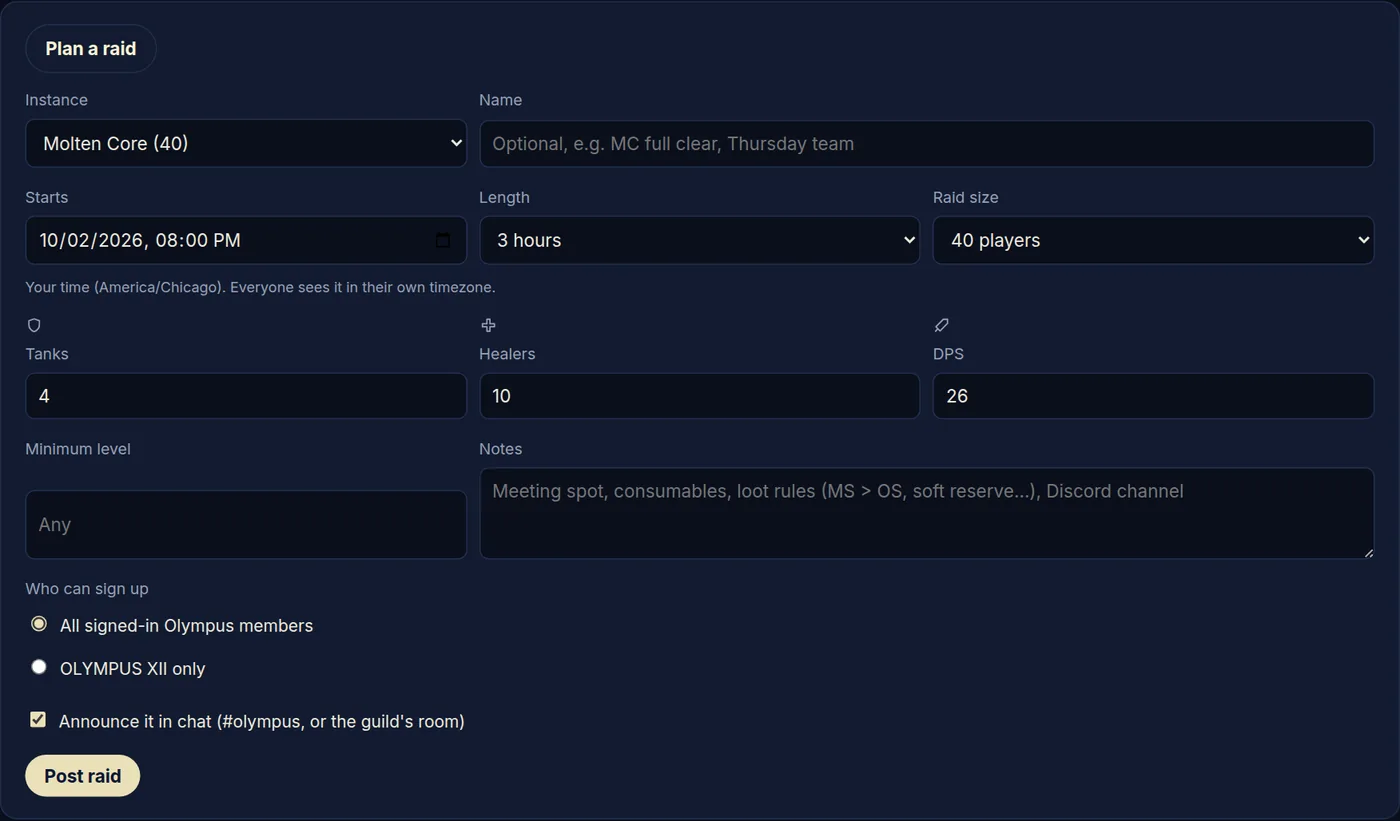
Leading a raid: press Plan a raid, pick the instance, time, size and how many tanks, healers and DPS you need, and choose whether it's open to all of Olympus or only your guild. It's announced in chat with a sign-up button. On the raid page you can confirm, bench or move people between roles, close sign-ups, edit or cancel the raid, and copy a ready-made /inv list to paste in game.
8Supply requests
- Need something? On Supply, press Request supplies: pick the item (it suggests real in-game items as you type), how many, who to mail it to, and optionally what you're offering and when you need it by.
- Want to help? Browse Open requests and press I'll supply this. Mail it in game to the name shown.
- When it arrives, the person who asked presses Got it to close it.

9Find Players
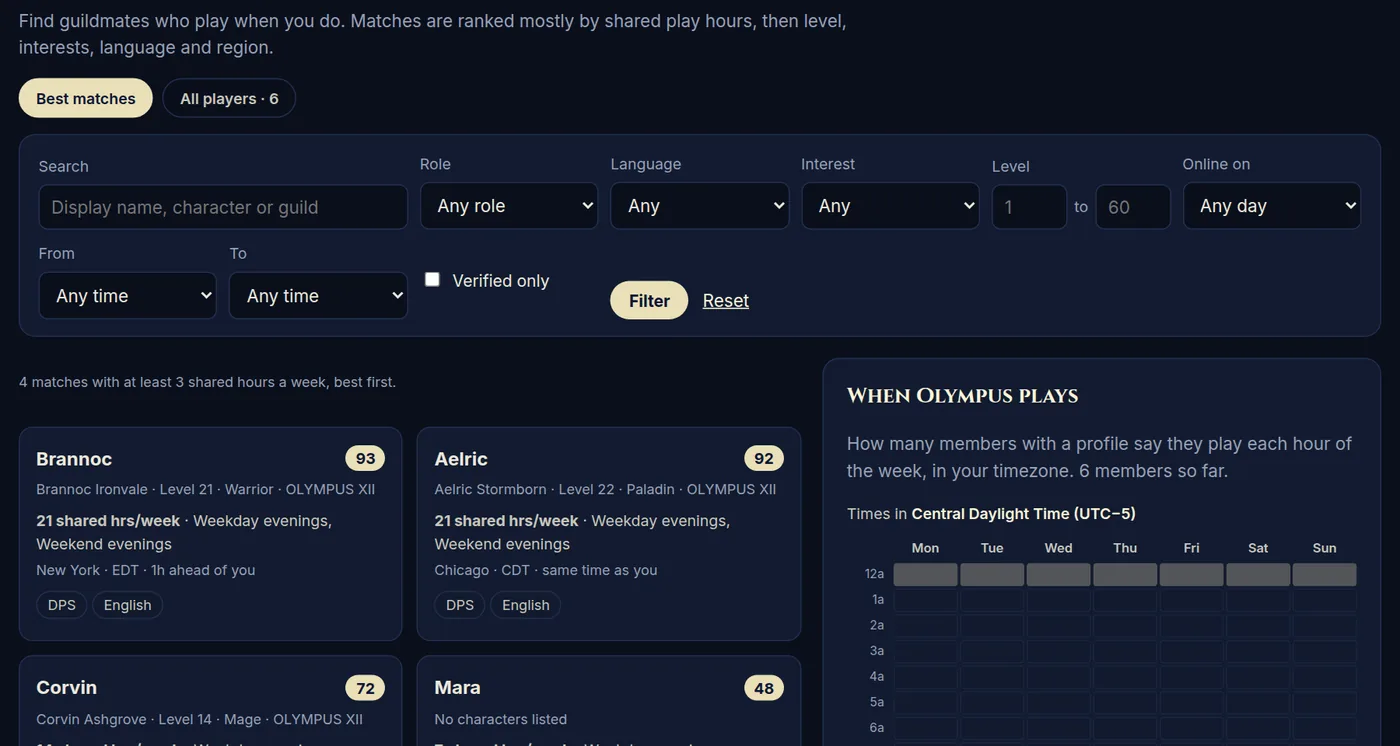
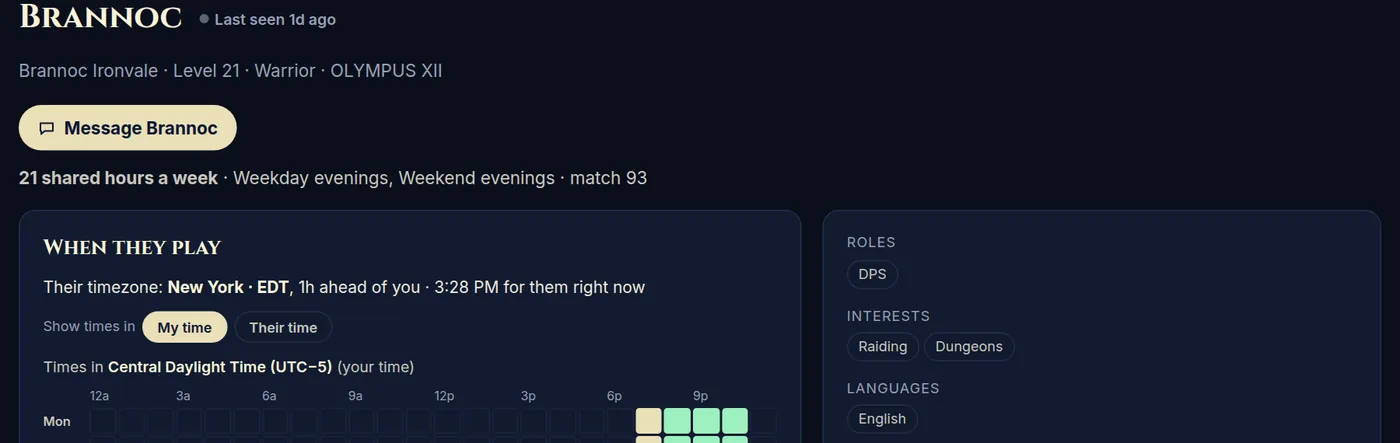
Find Players matches you with members who play at the same times you do (set your play hours on your profile first). Filter by role, language, interests, level or the hours you want to play, and open anyone's profile to see their characters, when they play and whether they're online. Press Message on a profile to DM them.
10Setting up the desktop app (ONN Companion)
ONN Companion is a free app for Windows and Linux. It puts a see-through panel over WoW with your raids, guild events, supply runs, chat and voice calls, so you don't have to alt-tab. It also sends your guild's census to the Army page automatically.
Install it
- Go to the ONN Companion page and press the download button for your system.
- Windows: open the downloaded
.zipand double-click the installer inside. You don't need admin rights. The app isn't code-signed yet, so Windows may say "Windows protected your PC": click More info, then Run anyway. - Linux: install the
.debwithsudo apt install ./onn-companion_*.deb, or make the AppImage executable (chmod +x ONN-Companion-*.AppImage) and run it. - The ONN shield appears in your system tray (bottom right on Windows, next to the clock; you may need to click the ^ arrow to see it).
Sign in
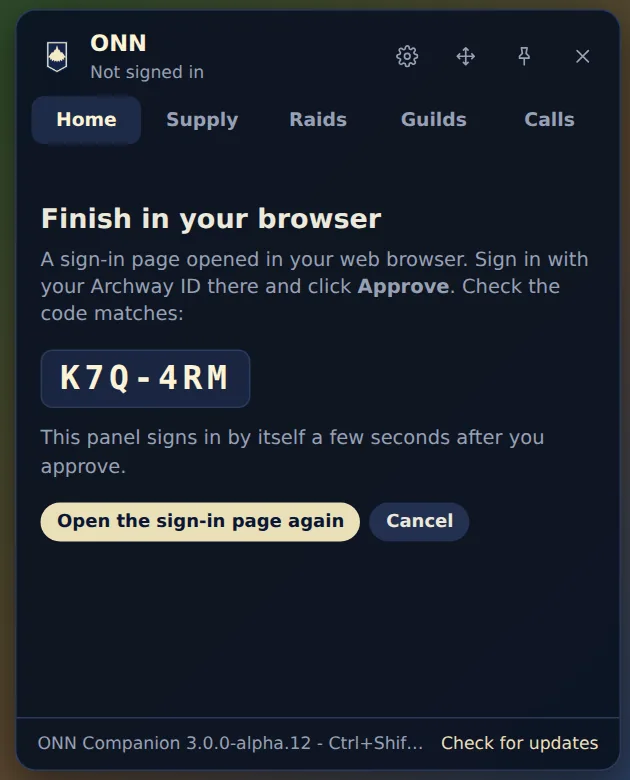
- Open the panel (click the shield in the tray, or press Ctrl+Shift+O) and press Sign in with Archway ID.
- A page opens in your normal web browser. Sign in with your Archway ID, check that the code on the page matches the code in the panel, and click Approve.
- The panel signs itself in a few seconds later. The app never sees your password.
Use it in game
- Set WoW to Windowed (Fullscreen) or windowed mode in its graphics settings. Exclusive fullscreen hides the overlay.
- Press Ctrl+Shift+O to open or close the panel. If another program already uses that, it falls back to Alt+Shift+O; the bottom of the panel shows which one you have. Press Esc or click back into the game to close it, or use the pin button to keep it open.
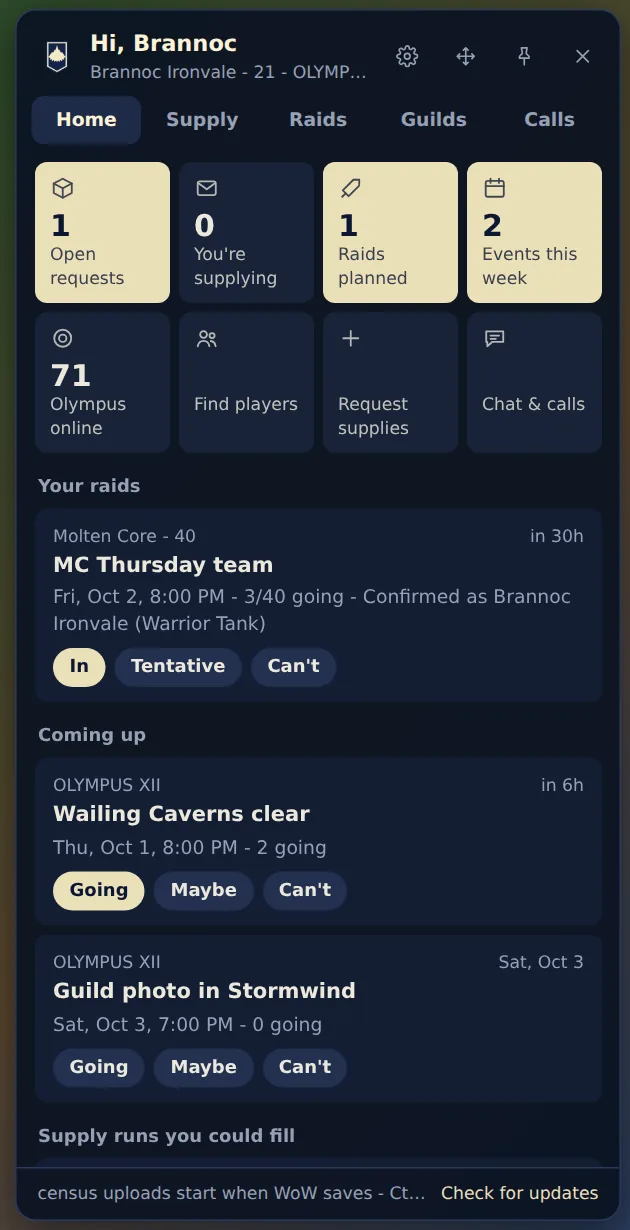
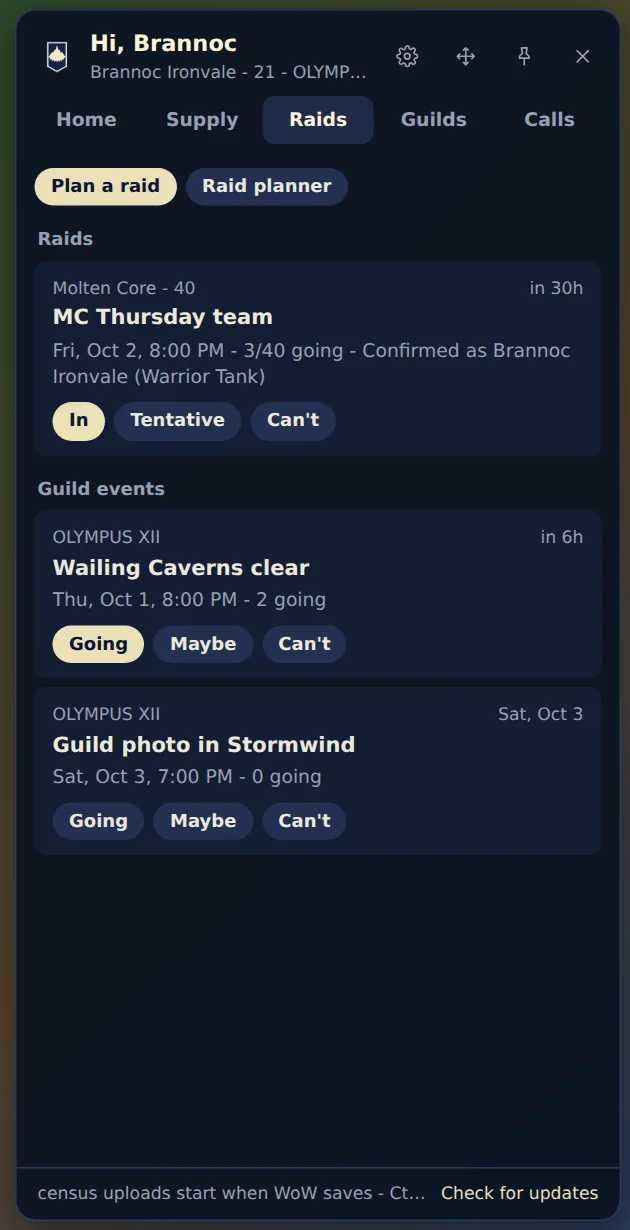
- Tabs: Home (quick tiles, your raids, what's coming up and news), Supply, Raids (sign up with one tap), Guilds and Calls (join a voice call in any of your rooms). Chat, profiles and other ONN pages open right inside the panel.
- Calls keep going when you close the panel. The strip at the top of the panel has Mute, Deafen, mic volume and Leave.
- You'll get a notice when one of your events is about to start, someone calls you, or someone asks to join a guild space you run.
Settings (the gear button)
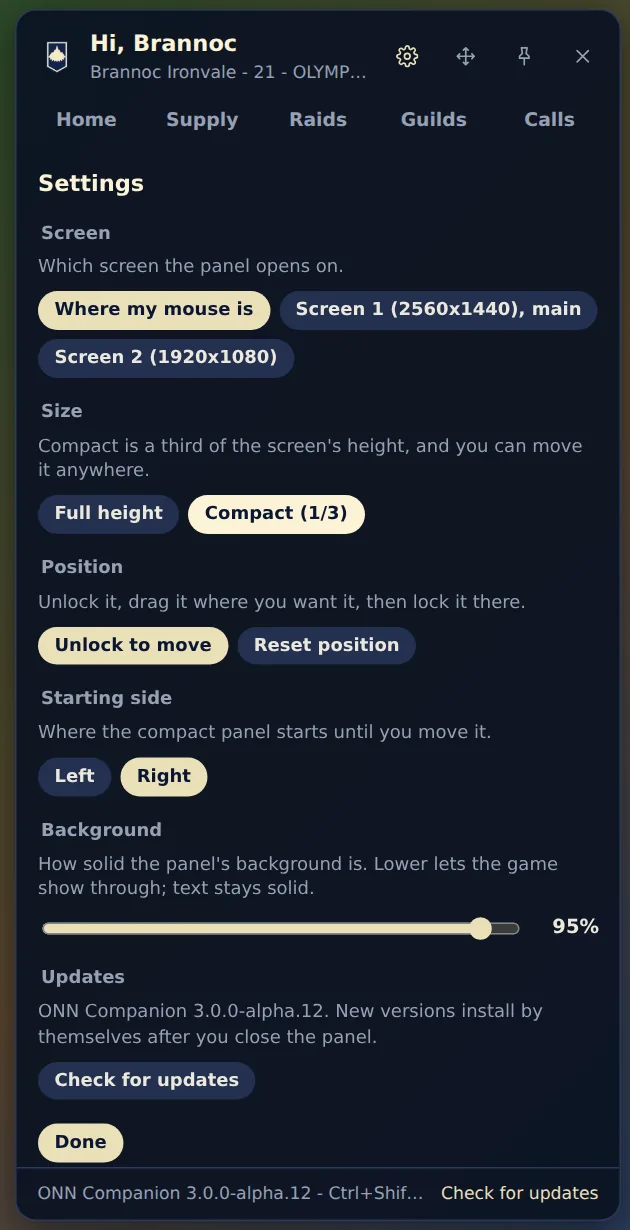
- Screen and Side: which monitor the panel opens on, and the left or right edge.
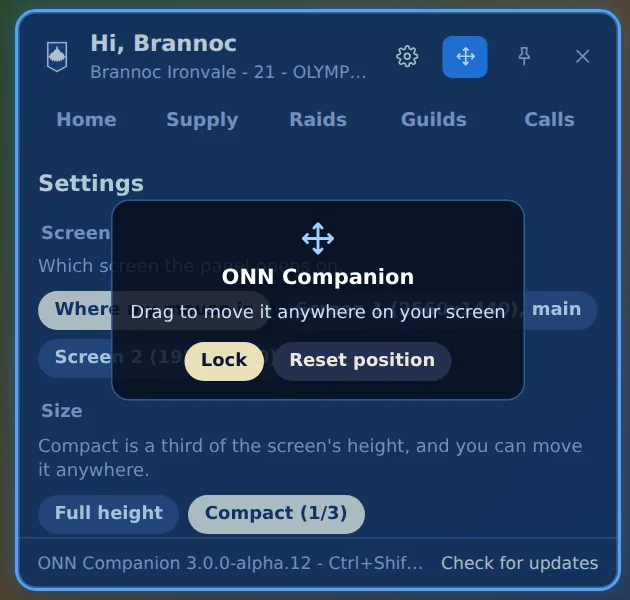
- Size: Full height, or Compact (a third of the screen). Compact can be moved anywhere: press Unlock to move (or the arrows button at the top), drag the blue panel where you want it, then press Lock.
- Background: how see-through the panel is, so the game shows behind it.
- Updates: new versions download by themselves and install after you close the panel. Check for updates does it straight away.
Census uploads
If you use the Olympus Guild addon, the app finds its saved file and sends your guild's census whenever WoW saves it (when you log out or type /reload). Nothing to set up. The first uploads from a new member may wait for an officer to approve them; the panel's footer shows the status.
Stuck or blank panel? Right-click the tray shield and choose Reset overlay. The same menu has Check for updates, Sign out and Quit.
11Everything else
- News: the front page, WoW: Forever and Olympus sections, and Videos collect the latest news and creator videos.
- Army: live numbers for every Olympus guild from the Olympus addon's census: members, who's online, levels and zones.
- Addons: addons the officers recommend, with CurseForge links.
- Guild Hall: announcements and rules for all of Olympus.
- Wall of Shame: names Olympus HR has flagged.
Something not working or unclear? Report it in #olympus or ask an officer.